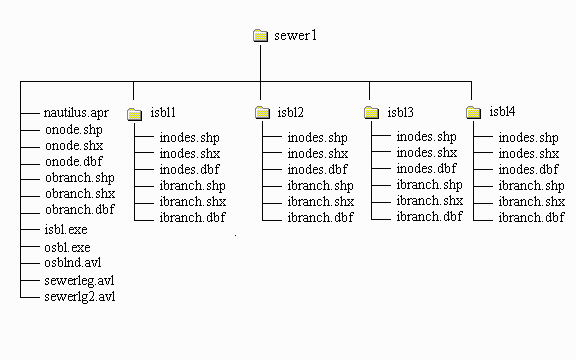
In addition to the basic ArcView software, the following files are necessary for the naUTilus/ArcView interface:
The naUTilus/ArcView interface was set up to run for the PC version of ArcView.
For the naUTilus/ArcView interface to run properly, your ISBL and OSBL must be stored in a specific manner. Create a main directory in which all of the files relating to a specific OSBL site are stored. Under this main directory, create a subdirectory for each ISBL unit associated with the OSBL unit. For OSBL and ISBL units, use the names at most 8 letters in length.
The main directory should hold the following files:
Each subdirectory should hold the GIS files (isbl.shp, isbl.dbf, isbl.shp) for one ISBL system which feeds the OSBL.
In addition, note that the file nautilus.apr is the original project file. An unedited copy of it should be kept at all times. As the original project file, it holds all of the programs needed to run naUTilus without any of the actual network files. This original, unedited copy should be kept and used for each new OSBL/ISBL sewer network. To keep nautilus.apr in its original state, use the Save As option the first time you work with it and work with the new project thereafter.
The first time you work with your sewer network in ArcView, you will want to open a project specifically for that network. To open the ArcView project, open ArcView and go to File/Open Project. Select the project nautilus.apr.
Use the Save As option, to preserve a copy of nautilus.apr in it's unedited form. Go to File/Save As and name the project. Choose a name which describes your sewer network. This name should be at most 8 letters in length. The 3 letter extension to this file will be .apr (e.g. sewer1.apr).
This project file will now be the file you open when you wish to work with your specific sewer network. The name of this project will appear in the blue bar at the top of the project window. This name will also appear as the title of the View window displaying your OSBL unit.
Note that saving your project should be done before initiating your network files
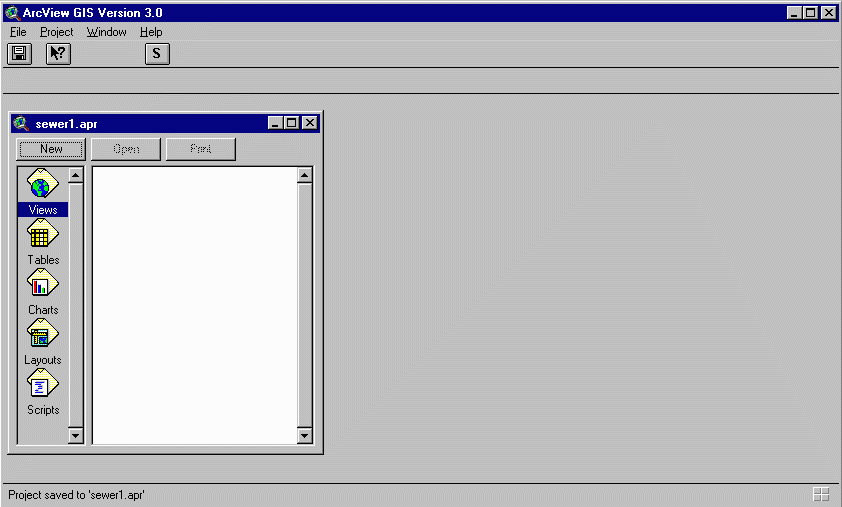
Once you have opened the ArcView project, you will want to bring all
of the GIS data on your OSBL and ISBL units to the project. To do this,
hit the  button found near
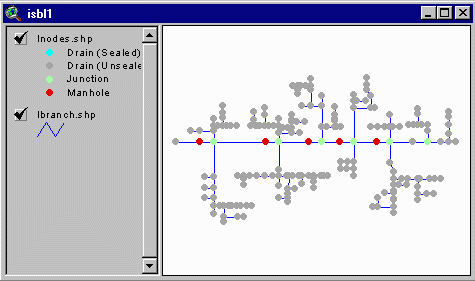
the top left of the screen. This adds your OSBL and ISBL GIS files to the project. A View window will open, displaying the map of your OSBL unit. The window name is identical to the name you saved your project under. The reaches/branches are shown in blue and the nodes (junctions, manholes, and pipe endings) are shown in gray.
button found near
the top left of the screen. This adds your OSBL and ISBL GIS files to the project. A View window will open, displaying the map of your OSBL unit. The window name is identical to the name you saved your project under. The reaches/branches are shown in blue and the nodes (junctions, manholes, and pipe endings) are shown in gray.
A View is added for each ISBL unit, but not opened in this step. You can see the list of created views and access them through your project window
by clicking on the Views icon,  .
.
In addition to adding your OSBL and ISBL map data into the project, this step also creates several files in the ISBL subdirectories. These files (hardpipe.dbf, drains.dbf, drops.dbf, brtable.dbf, nodecon.dbf) should not be erased.
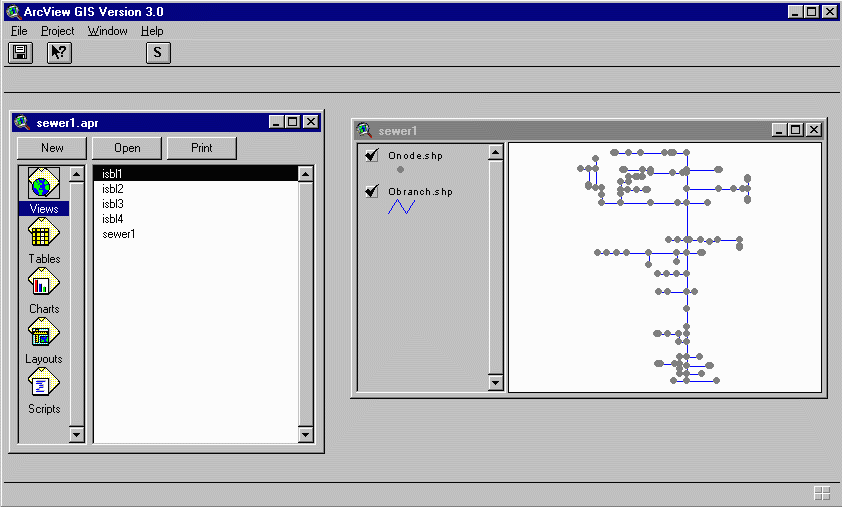
To work with any one of your ISBL units, open the View corresponding to that unit. For example, to work with Isbl1, click on Isbl1 in the project window. Click on Open. The View window for Isbl1 will open.
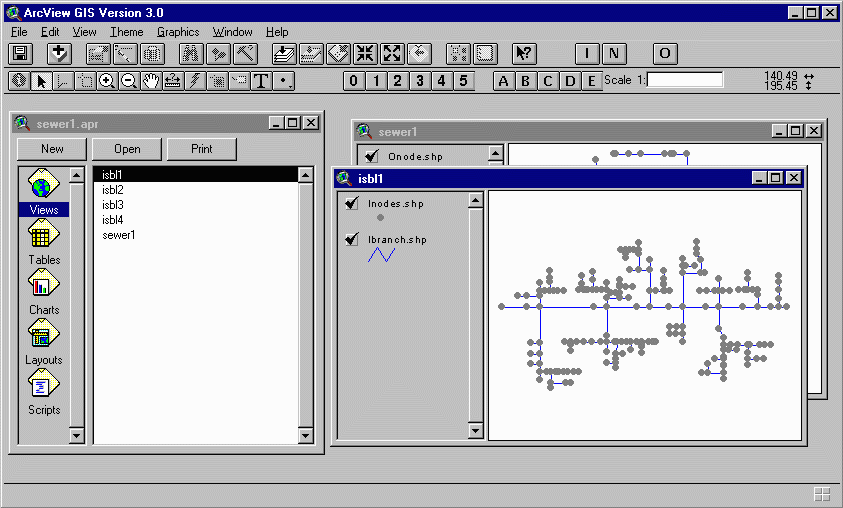
Once the View window for the ISBL is open, you can begin entering data for the ISBL.
To enter data on the ISBL network, you will use the buttons numbered 0 through 5 in the toolbar you see when a View window is opened. These buttons should be applied in numerical order.

The first step in describing your ISBL network is to select a default
type for the nodes of your system. The nodes, appearing initially in gray,
represent both drains and junctions. Click on the  button.
Your choices for default types are Drains (Unsealed) or Junctions. Do not
worry if your system is a sealed system or about designating manholes.
You will be given the option of changing that later in the process.
button.
Your choices for default types are Drains (Unsealed) or Junctions. Do not
worry if your system is a sealed system or about designating manholes.
You will be given the option of changing that later in the process.
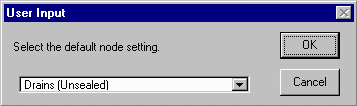
Once you select a default, you will be prompted to click on any nodes which are not the default type (i.e. junctions, if drains were selected).
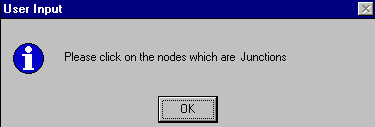
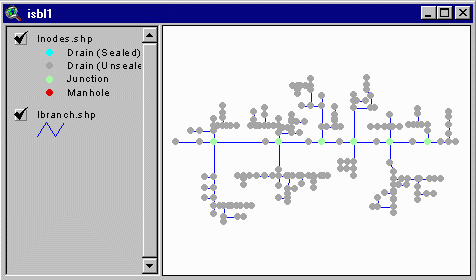
Click on the nodes which you wish to change. If you make an error, click on the node again. It will toggle back to the default type. You will see the legend in the left hand portion of the view indicating which color represents each type of node.
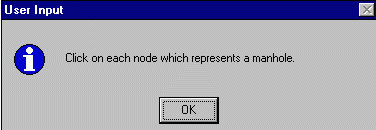
In this step, you will indicate which nodes represent manholes. Click
on the  button. Like in
step one, you will be prompted to click on nodes. Click on the nodes which
represent manholes.
button. Like in
step one, you will be prompted to click on nodes. Click on the nodes which
represent manholes.
You will see the manholes marked as indicated in the legend of the view Inodes.shp.
This step lets you choose the default drain status (sealed/unsealed, default diameter and temperatures), allows you to enter drain flow data, and prompts you to change the sealed/unsealed status of individual drains as necessary.
Click on the  button.
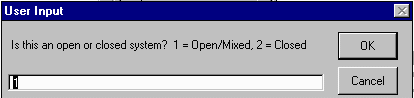
ArcView will prompt you to indicate if you have an open or closed system
button.
ArcView will prompt you to indicate if you have an open or closed system
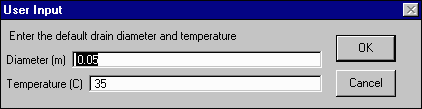
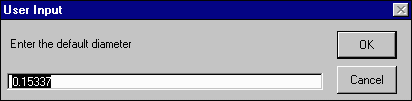
You will also be prompted to enter a default drain diameter and temperature. These numbers will be used for all drains which you do not later modify.
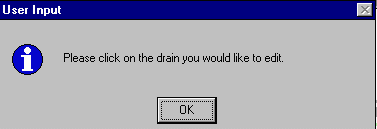
ArcView will then prompt you to click on a drain to edit. Click OK, then click on a drain for which you would like to change either the sealed/unsealed status or on a drain where you wish to enter flow data. When you have completed the changes to a node, click on node you wish to alter.
If you wish to change the drain you selected from its present status, when prompted, select the option Change sealed/unsealed.
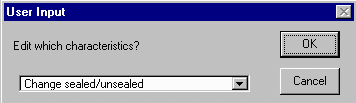
To confirm your change, ArcView will present a window indicating the present status of the drain (opened or closed).
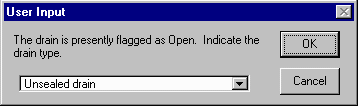
Select the correct status in this window and hit OK.
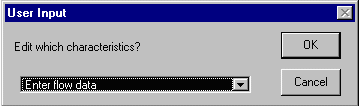
To designate flow to a node, click on the node and select Enter flow data when prompted to choose a characteristic to edit.
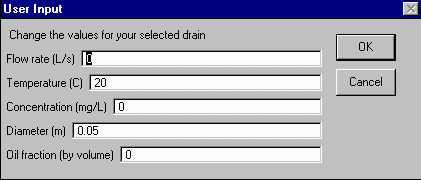
Fill in the appropriate numbers for Flow rate (L/s), Temperature (oC), Concentration (mg/L), Diameter (m), and Oil fraction by volume.
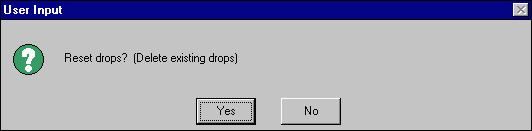
 button. You will be asked if you would like to reset existing drop data. Choose the appropriate option. If this is the first time you are editing your ISBL unit, you should choose to reset the drop data..
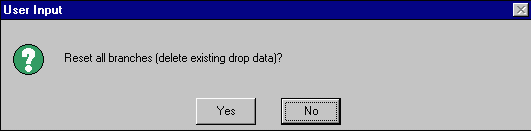
You will then be asked to click on any branch at which a drop occurs. The branch associated with a drop is the branch with a drop at the terminal end. If you have no drops in your system or have completed this step, simply move on.
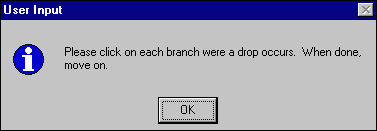
If you do have drop data to enter, simply click on the appropriate branch. You will be prompted for the height of the drop and the tailwater depth. Both values should be entered in meters.
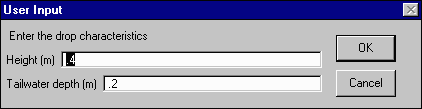
When you have completed entering the data for a given drop, the branch associated with that drop will change colors. The colors of branches with and without drops are indicated in the legend on the left hand portion of the View window.
To enter more drop data, simply click on the branch associated with that drop. Repeat these steps as many times as is necessary, then move on.
To enter hard pipe connection data, click on the  button. You will be prompted to click on the node where the hardpipe is connected.
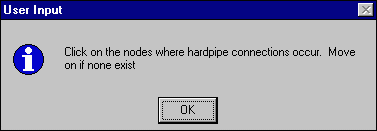
Click on a node where a hardpipe connection occurs and you will be prompted to enter the flow rate, temperature, concentration, and oil fraction of the flow through that hardpipe connection.
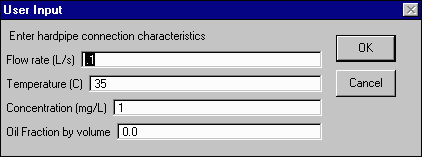
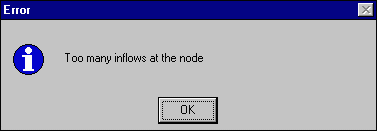
Should you click on a node where there are already 4 connections (3 inflows and an outflow), you will not be allowed to add a hardpipe connection. naUTilus is not configured to handle more than 4 connections at any one node.
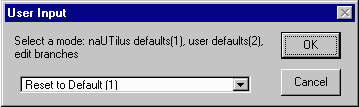
The last step in specifying ISBL characteristics is to change any branch characteristics from the default. When you hit the
After running the above steps, you can create the ISBL naUTilus input file. Note that only after you have completed steps 1-6 will you get a complete input file. You also need to know information on the chemical whose emissions you are modeling, as well as which method of calculation you wish to examine. This information will be prompted for as you create the naUTilus input file. Without this information, naUTilus will not run.

Click on the button in the button bar (found near the right end of the button bar). You will be prompted for a series of data related to the inflow to your ISBL unit.
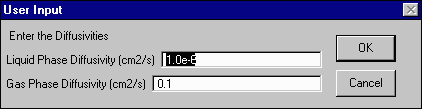
The first option ArcView will give you is the choice of methods in calculating the Henry's Law constant for your chemical. After choosing this method, you will be asked to provide the necessary values for this calculation (In this example, values for toluene are used).
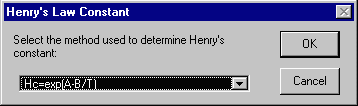
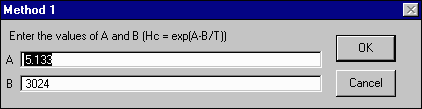
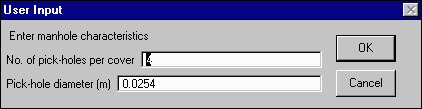
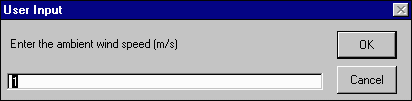
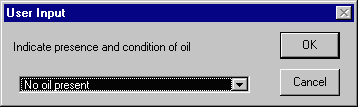
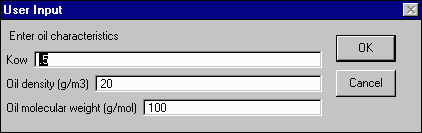
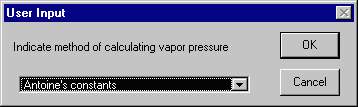
Method 1 requires that you enter the Antoine constants (A,B,C) for temperatures in Kelvin. This gives vapor pressures in mmHg.
Method 2 requires a vapor pressure in atmospheres.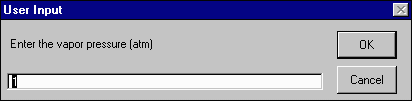
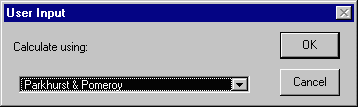
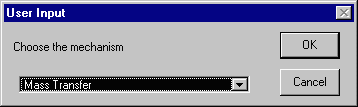
After selecting a mechanism, all input needed for the naUTilus input file has been specified. ArcView writes an input file and you are ready to run naUTilus on that ISBL unit.
 button. When you click on this button, there will be a slight delay after which naUTilus will run. If you have problems running this script, you may want to close other windows. A problem which may arise is a shortage of memory on the device. Closing some windows or allowing some time for background processes to complete should solve this problem.
 ISBL naUTilus can be run for various ambient conditions and chemicals by running through the steps for executing naUTilus and entering new conditions or chemical properties
To edit data entered for the ISBL unit, use the buttons as described for entering ISBL data. Many buttons will ask if you would like to reset the data. Hit "OK" only if you are entering new data for every element associated with that button (i.e. resetting every drain when selecting button ).
Once any data has been changed for the ISBL unit, naUTilus must be run again for the output to reflect the changes made to the ISBL unit.
To enter the characteristics of your OSBL network, you will use the lettered buttons on the far right of the toolbar.
Certain steps in working with your OSBL unit can be done before completing the steps given for ISBL units. Other steps, however, require that you have already run naUTilus on all the ISBL units associated with your OSBL unit. In particular, the step which requires completion of all ISBL steps is that represented by the  button.
 button in the toolbar. You will be asked if you would like to reset all junctions and nodes. The first time you work with your network, select Yes. After this first time, select yes only if you wish to set the nodes back to their defaults. Selecting no will allow you to edit individual nodes and junctions.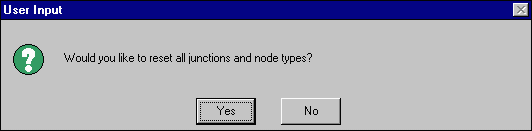
You will then be prompted to click on a node you would like to edit.
In the legend of your view you will see that the nodes are color coded according to their type. A gray node indicates that there is a manhole present at that location. Purple signifies that no manhole exists. All start nodes (nodes at the initial end of flow lines) default to Node (no manhole). All internal nodes default to Node (manhole). When you click on an internal node, that node becomes a Junction (no manhole) while clicking on a start node will indicate that there is a manhole at that location. The outlet node is marked in a dark blue.
The numbering system in naUTilus does not account for the possibility of a manhole existing at the initial end of a flow line. When you indicate a manhole exists at the initial end of a flow line, ArcView will take this into account by adding a short branch to the system, to allow naUTilus to function on the network.
Click on the  button. If you have changed the status of any of the purple nodes at any time, you MUST run this step. If editing an already specified network and you change the type of any node, you MUST run this step.
When this step has been completed, you will see confirmation that the renumbering is complete
 button. This step allows you to select the default branch diameter and slope in your system. All branches will be set with these default characteristics.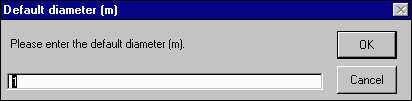
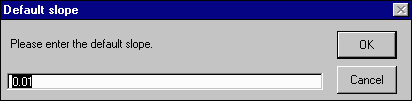
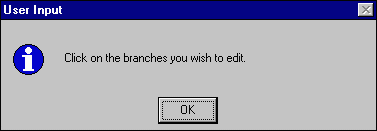
Once your default characteristics are set, you will be able to edit individual branch characteristics. ArcView will prompt you to click on any branches you would like to edit.
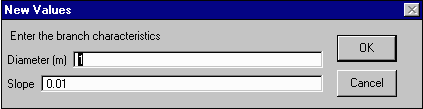
The values which appear in the input box are those which are currently assigned to the branch you selected. Initially, these will be the defaults you just selected. Enter the new branch diameter in meters and the new branch slope. If either or both of the values are already the values you desire, simply click OK and move on to the next branch you wish to edit or move on to the next step.
 button. You will be asked to click on a branch where a drop occurs. As in the ISBL units, this branch has a drop at its terminal end.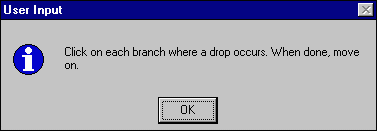
When you have selected a branch with a drop, you will be prompted for the drop height and the tailwater depth, both in meters. Enter these values and hit OK.
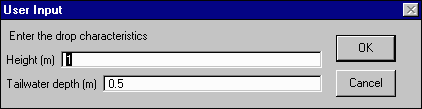
If you should choose reset your specified drops or, at a later time, choose to add new drops, you can again click on the . You will be asked if you would like to reset the existing drop data. If you wish to add new drops, select No. If you would like to reset the drop data, hit yes.
 button. You will be prompted on whether or not you wish to reset any existing inflow data. The first time you work with your ISBL unit, select yes. Otherwise, select the appropriate option.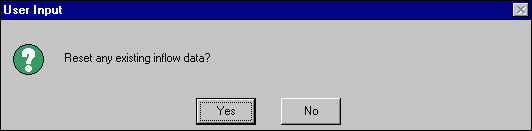
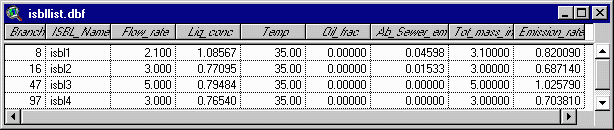
When you first hit the button, ArcView will open the table "isbllist.dbf". This table will show you, in the column titled "branch", if your ISBL units are already associated with any branch in the system. If they are not, you will see a zero value in this column. Otherwise, the number which appears is the branch number to which your ISBL flows.
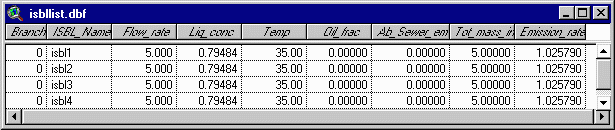
You will also be asked to indicate if other flows to the OSBL exist. If you have flows which do not originate in ISBL units, or if you have emissions data on ISBL units which you have not included in your ArcView project, you can include them by selecting Yes.
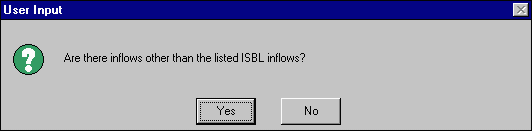
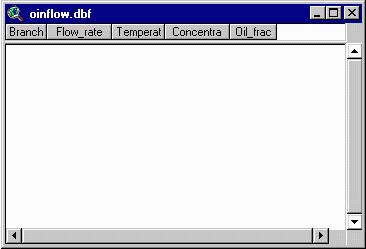
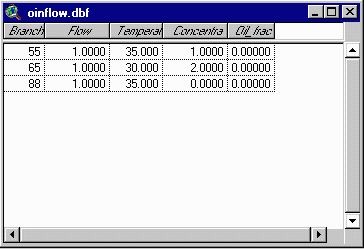
If you indicate yes, another table will open. This table will hold all data on non-ISBL inflows.
Next, you will be asked to click on a point where flow occurs. Click on a node. Note that as naUTilus assumes flow initiates at branches, not nodes, internal nodes are not presently allowed to be associated with ISBL or other inflow.
Once you have clicked on a valid point, you will be asked to indicate the type of inflow (ISBL or other). Select the appropriate option and hit OK.
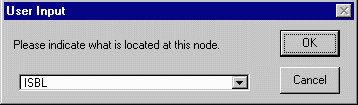
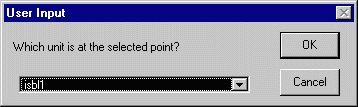
If you have selected ISBL flow to the indicated point, you will be presented with a list of your ISBL units to select from. Select the ISBL unit which corresponds to the point and hit OK.
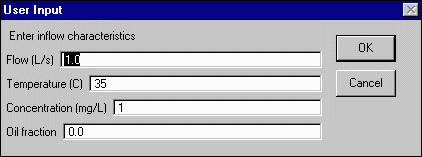
If you have selected other flow, you will be asked to enter the flow data for that inflow. Enter the flow rate (L/s), temperature (0C), concentration (mg/L), and the oil fraction. Hit OK.
Complete connecting your ISBL and OSBL units by repeating step E until all units and flows have been entered. Once you have completed this step, you should have non-zero values in the "branch" column of the isbllist.dbf table and all the appropriate values in the oinflow.dbf table.
For the OSBL unit, creating a naUTilus input file, running naUTilus, and displaying the emissions at each node is done in one step. Click on the  button to start this step.
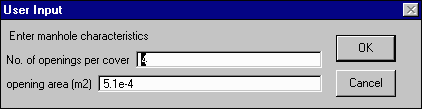
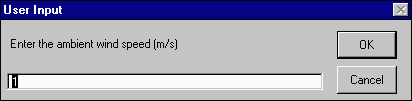
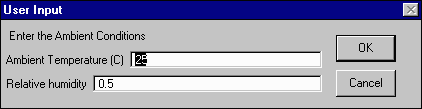
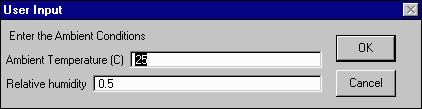
Enter the ambient temperature (oC) and relative humidity as a decimal (i.e. 0.5 = 50%). Hit OK.
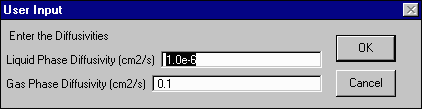
Method 1 requires that you enter the Antoine constants (A,B,C) for temperatures in Kelvin. This gives vapor pressures in mmHg.
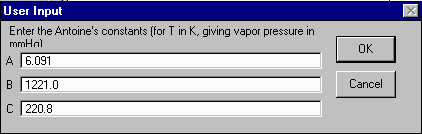
Select the appropriate choice and hit OK.
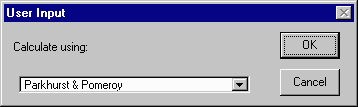
Select the appropriate choice and hit OK
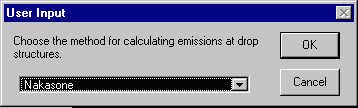
After you have selected your method and hit OK, there will be a delay of approximately 10 seconds while ArcView calls and runs naUTilus. A DOS window will open and close, indicating that naUTilus has been run.
One naUTilus has been run, ArcView finds the resulting output and displays the results in your View window. An example of the output is shown below.
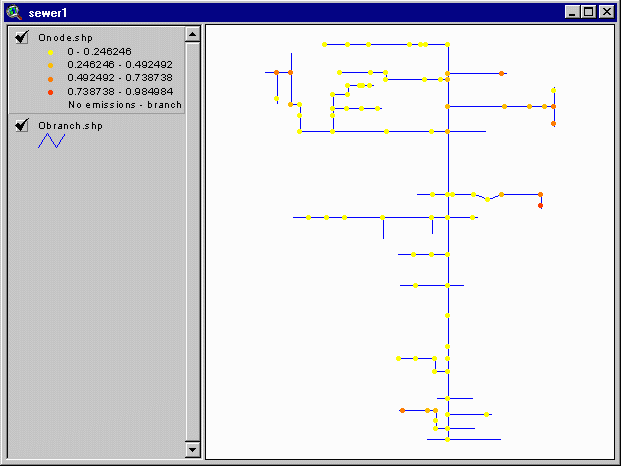
The results shown upon executing naUTilus are default display options set by the ArcView project. Users familiar with ArcView can alter the display by editing the legend or using the Autolabel feature.
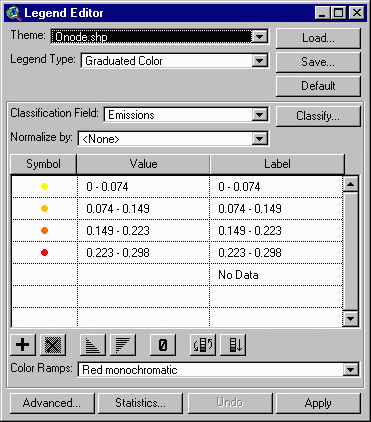
The legend editor allows the user to add or delete ranges from the default display of emissions. It also allows the user to display values for branches and values other than emissions for nodes.
The autolabel function is available from the theme menu.
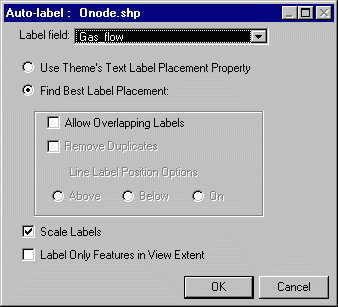
It allows the user to label features on the View with values from the feature attribute table.
Any of the sewer characteristics entered for OSBL may be edited using the buttons used for data input. As in the case of ISBL units, the user should be careful about resetting characteristics. As additional note for OSBL units, if any node types are changed in the OSBL unit, step B MUST be re-run.
For questions regarding naUTilus, contact:
Dr. Richard Corsi
The University of Texas at Austin
corsi@mail.utexas.edu
(512)475-8617