 button found near the top left of the screen.
This document is under construction. Last updated 3/21/98.
Computer and Data Requirements
This project was set up to run on a PC system running ArcView (version 3.0 or higher). The procedure also requires Arc/Info. You will also need the naUTilus executable files.
| naUTilus Executable Files: | ||
|
||
| Data Files: | ||
| ISBL | OSBL | Other (required by ArcView project) |
|
|
|
This exercise was created to complement to User Documentation which describes the general procedure for running naUTilus from ArcView. This exercise provides step by step instruction for an example sewer network (1 ISBL unit, 1 OSBL unit). It assumes that the ISBL and OSBL units have already been digitized, saved as DXF files, and converted to theme files in Arc/Info.
For more information on the background of this project and industrial sewer networks, see my thesis, Fugitive Emissions of VOCs from Industrial Sewer Networks: Integration of naUTilus and ArcView, available as an online document in PDF format.
Create a directory called OSBL on your computer. Place the following files in the OSBL directory:
Within the OSBL directory, create a subdirectory called ISBL. In this directory, place the following files:
Note that the names of the directories do not need to be OSBL and ISBL. These names are used for simplicity and uniformity in the exercise. However, the names of the theme files (inodes.*, ibranch.*, onode.*, obranch.*) do need to be as specified.
Once your files are set up, start the application ArcView. Open the project, nautilus.apr. From the menu bar, go to File/Save as. Save your project as sewer.apr. (This name is used for simplicity and uniformity in the exercise. For original networks, name the project as appropriate to the OSBL unit. The name given to the project will also be given to the OSBL view window.)
When your project is opened, it will appear as below: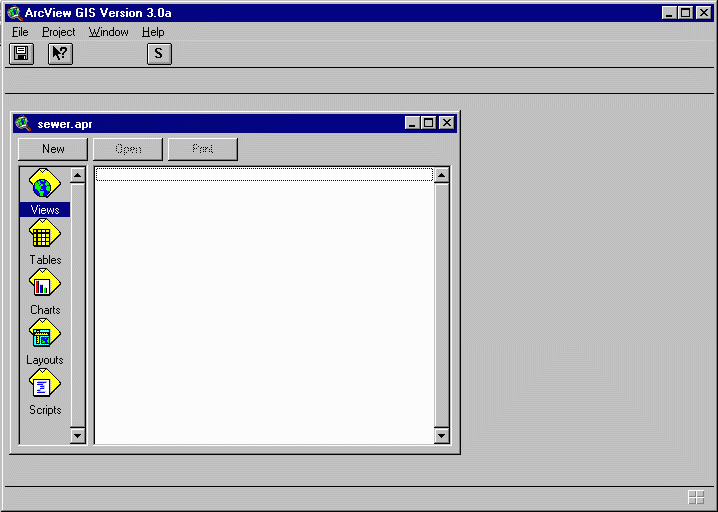
Now that the project file is opened and saved, you will want to bring the OSBL and ISBL theme files into your project. This is done by hitting the button found near the top left of the screen.
This step not only finds the network theme files in your directories, it also creates files needed throughout the project. A "map" to these files is also created in this step. Note that this step MUST be run for each new project. Other files may be manually added to the project, but this step is essential for all scripts to run properly.
From your project window, click on the View icon,  . You can see the views "sewer" and "isbl" have been added to your project. Click on the Tables icon and you can see the table isbllist.dbf. Several other files are created in this step, but are not opened in your project till they are needed.
Click on the View icon and select the view called "isbl". Click on Open. This opens the view window describing your ISBL network. Initially, your ISBL network should look like this:
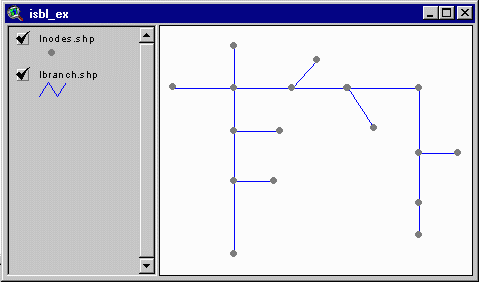
Once your view window is open, there are 6 steps you will need to perform to input data on your ISBL unit. These six steps are run by hitting the buttons numbered from 0 - 5 in the toolbar.
To help you work with this network, the nodes and branches have been numbered as follows:
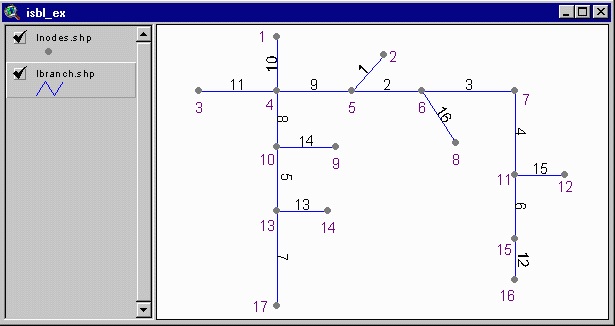
Branch numbers appear in black and node numbers appear in purple

Setting nodes and junctions
Click on the  button. This is the first time the network is being edited so you will be asked to choose a default for you nodes. Of the three options (all nodes are drains, all nodes are junctions, or internal nodes are junctions and initial nodes are drains), select option 3 and hit okay.
Notice that the legend for the theme "inodes" has changed. Four different kinds of nodes are listed in the legend (at the left portion of the view window). Look at your ISBL network. Notice that all initial nodes are gray, indicating unsealed drains. All of the internal nodes should be green, indicating they are junctions.
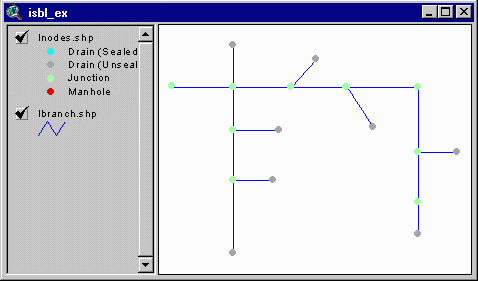
Now you are prompted to click on the nodes you wish to edit. Click on a node and notice that it changes between green (junction) and drain (gray). Click on the same node again and see that it toggles back to its original default setting. Click on node 15. Do not worry about the sealed/unsealed status of the drains. You will be able to change drains to sealed drains at a later point.
If you should wish to change a drain's status (drain/junction) any time after moving on in the exercise you will be asked if you want to reset the drain data. If you select yes, you will start from the beginning of this step again. If you select no, you will be prompted to select nodes you wish to edit, as in the step discussed immediately above.
Setting manholes
Click on the  button. You are prompted to click on any nodes which represent manholes.
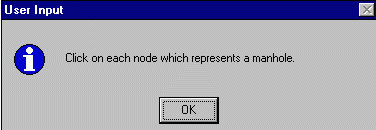
Click on a node. Notice that it turns red. Look at the legend for the node theme. It indicates that a red node marks a manhole. Click on that same node again. You are prompted to indicate if this node is a junction or a drain. Select an appropriate option. Click on node 4.
Editing drains
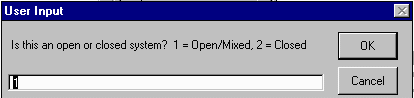
Click on the  button. You are asked to indicate if your system is Open/Mixed or Closed. Select Open/Mixed. This sets all of your drains as unsealed. For either selection, you will be able to select individual drains and change their sealed/unsealed status.
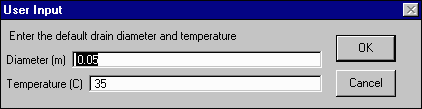
Enter a default drain diameter of 0.05 meters and a default temperature of 30 oC. Click OK.
You are prompted to click on a drain you would like to edit.
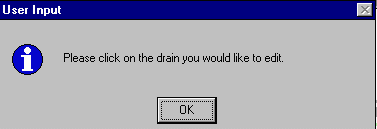
Click on node 14. You are given two options: change the sealed/unsealed status or enter flow data. Select "Change sealed/unsealed". You will be asked to indicate what kind of drain you want to change it to. Select sealed and hit OK. Notice that the color of node 14 has changed from gray to blue, indicating that it is now a sealed drain.
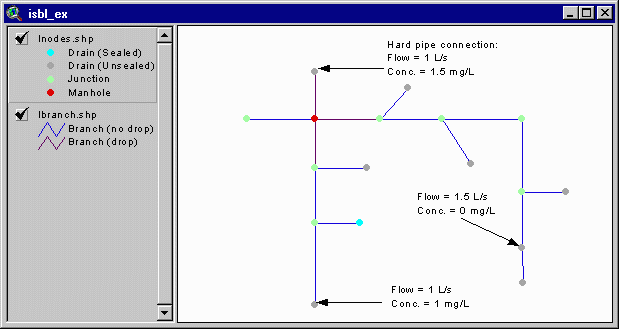
You will now enter flow data. Click on node 17. Select the option "Enter flow data". Enter a flow rate of 1 L/s, a temperature of 30 oC, a concentration of 1 mg/L, a diameter of 0.05 meters, and an oil fraction of 0.
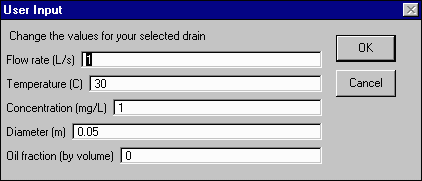
Click on node 15. Select "Enter flow data" and enter a flow rate of 1.5 L/s, a temperature of 30 oC, a concentration of 0 mg/L, a diameter of 0.05 meters, and an oil fraction of 0.
Entering drop data
Click on the  button. Click on branch 8. Enter a drop height of 0.15 meters and a tailwater depth of 0.4 meters, then hit OK.
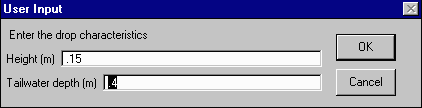
Repeat the above for branches 9 and 10.
Enter hard pipe connections
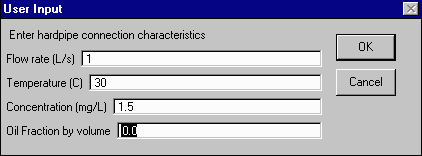
Click on the  button. Click OK at the prompt. Click on node 1 and enter the following data: flow = 1 L/s, temperature = 30 oC, concentration = 1.5 mg/L, oil fraction = 0.0.
You have now completed entering the data on the flows to you ISBL system, which can be summarized by the following graphic:
Editing branches
Click on the  button. Select the option "Reset to Default (1)". When prompted for a default slope value, enter 0.01 and hit OK. Hit OK at the next prompt.
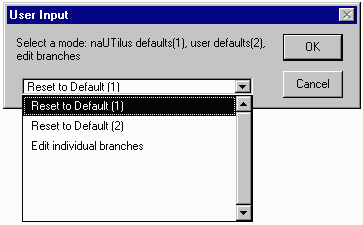
Click on branch 11. You can see that the diameter of that branch is 0.2055 meters. Click on any of the other branches. You can see that the diameter for other branches is 0.1534 meters. These are the values naUTilus uses (0.2055 for branches directly downstream from a manhole and 0.1534 for other branches).
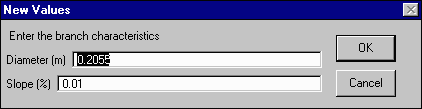
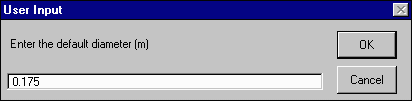
Click on the button again. This time, select the option "Reset to Default (2)". When prompted, enter a default diameter of 0.175 meters and hit OK. Enter a default slope value of 0.005 % and hit OK. Hit OK at the next prompt.
Click on any branch. You can see that all branches have a diameter of 0.175 meters and a slope of 0.005%. Click on branch 11 and change the diameter to 0.2 meters. Hit OK. If you click on branch 11 again, you will see this new value listed as the diameter.
With your ISBL view window active, click on the  button. We will use benzene as the VOC analyzed in this problem. The chemical data for benzene you will need for this example are provided in this exercise. The data needed are the following:
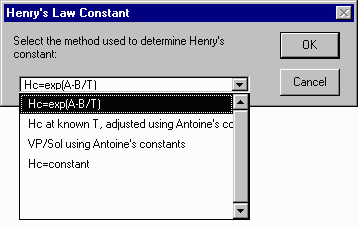
Enter the values of A and B listed above. Hit OK.
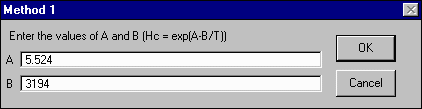
Next you will enter the values for Dl and Dg.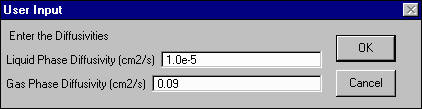
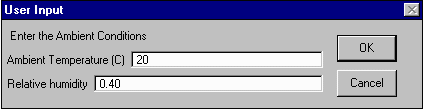
You will then be prompted to enter some ambient conditions. Enter an ambient temperature of 20 oC and a relative humidity of 40%. Hit OK.
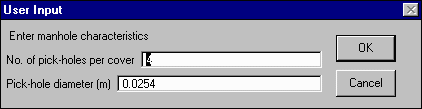
When you are prompted for the number of pickholes per manhole cover and the pickhole diameter, accept the default values given. Hit OK.
When prompted for the ambient wind speed, enter a value of 1.2 meters per second. Hit OK.
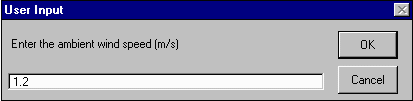
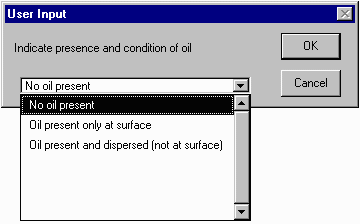
You will then be asked to indicate if oil is present in your system. We will assume that there is no oil in our case. Select the first option (No oil present) and hit OK.
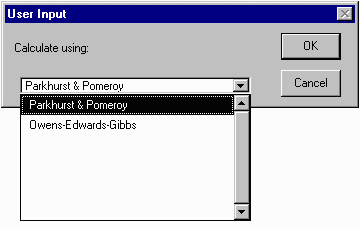
ArcView will then ask you to choose the relationship you would like to use for calculating
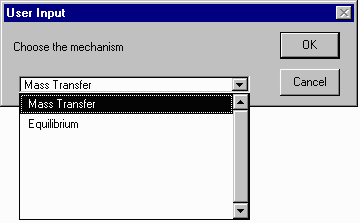
Next you will indicate if you believe the mass transfer in the system is kinetically limited or equilibrium limited. We will assume our system is kinetically limited. Select the first option (Mass Transfer) and hit OK.
You are now done creating the ISBL naUTilus input file. The next step is to run naUTilus. This is done by selecting the  button. This is a delayed run, so there will be approximately 10 seconds before naUTilus is run. When it is run, you will see a DOS window open and run several commands. This DOS window should close when the commands have been run.
ISBL naUTilus has been run. Look at the output files. You can look at it by opening it in Notepad. There are two ISBL output files, ISBL.OUT and ISBLOUT.TXT. ISBL.OUT lists data for each branch in your system. To see a copy of the output file, click here ISBL.OUT. The other output file, ISBLOUT.TXT, is a small text file with the data needed for OSBL input. To see a copy of this file, click here ISBLOUT.TXT
6. Working with the OSBL network
The steps to work with the OSBL network are very similar to those for the ISBL network. Open your OSBL view window. It should look like this:
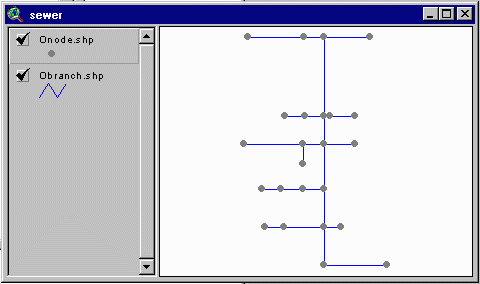
The buttons to work with your OSBL network are to the right of those you used for the ISBL network and are labeled from A through E.
To help you work with the OSBL network, here is a numbered diagram of the nodes and branches. Node numbers appear in purple and branch numbers appear in black.
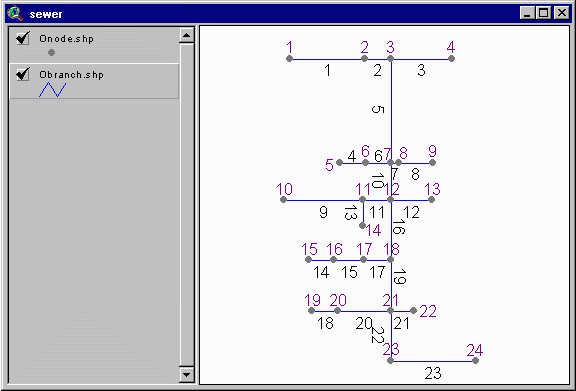
Setting nodes, junctions, and manholes
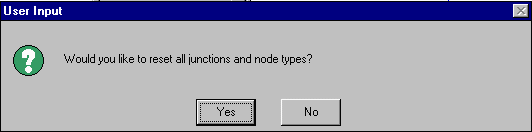
Click on the  button. This is the first time you have worked with the network, but you will be asked if you want to reset all junction and node types. Click on Yes.
Your OSBL network should now look like this:
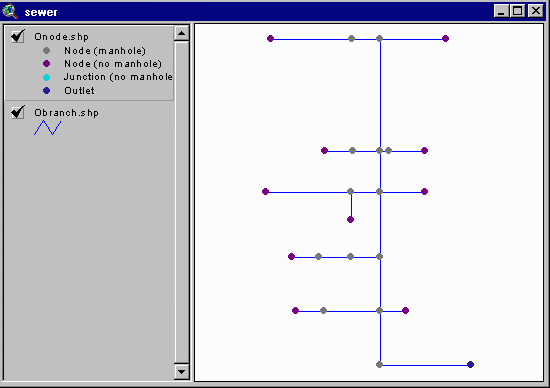
Notice that the outlet (located at the bottom right of the image) is colored in dark blue, and nodes at initial branch ends are purple (no manholes). All other nodes are gray, indicating a manhole location.
You are prompted to click on any node to edit the node type. Click on node number 10. You will see it change from purple to gray, indicating a manhole is located at node 10. Click on node 10 again. You will see it toggle back to purple, indicating there is no manhole at that location.
Click on nodes 1, 8, and 11. The resulting OSBL should look like this:
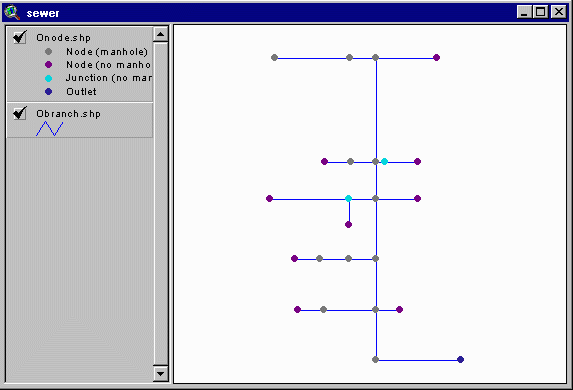
There is now a manhole at node one and junctions (with no manholes) at nodes 8 and 11.
Assigning naUTilus numbering
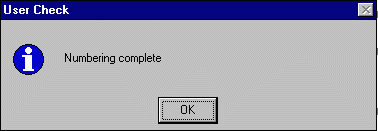
To assign all nodes numbers consistent with the naUTilus numbering system, click on the  button. When the numbering is complete, you will see the following message. Click OK.
Editing branches
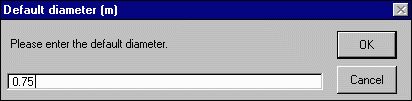
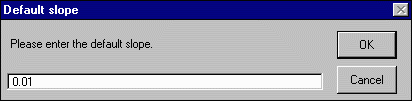
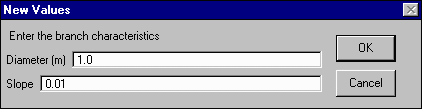
Next you will enter the default branch characteristics. Click on the  button. When prompted for a default branch diameter, enter the value 0.75 meters. Select a default branch slope of 0.01%.
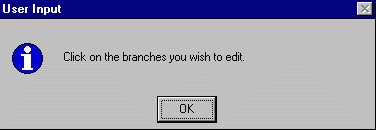
You will be prompted to click on the branches you wish to edit. Click OK.
Click on branch 5. Replace the default value for diameter (0.75 meter) with the value 1.0 meter. Leave the default branch slope. Click OK.
Repeat this step for branches 10, 16, 19, 22, and 23. These are the main branches of the system (laterals).
Entering drop data
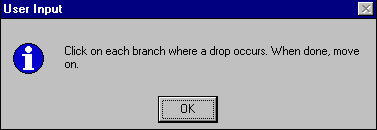
To enter drop data, click on the  button. You will see a message to click on a branch where a drop occurs. Click OK.
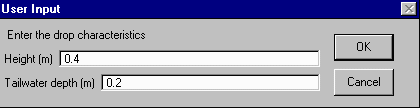
We will assume there is a drop structure at node 21. Click on branch 19. When prompted enter a drop height of 0.4 meter and a tailwater depth of 0.2 meter. Then click OK.
Repeat the above procedure for branches 20 and 21.
Entering flow data
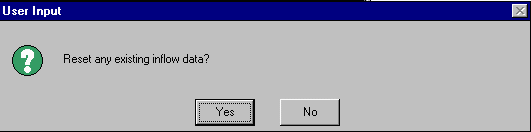
The last step in describing your OSBL network is to connect the ISBL network and enter other flow data. To do this, click on the  button. This will open the table ISBLLIST.DBF. You will also see a message asking if you would like to reset any flow data. Select Yes.
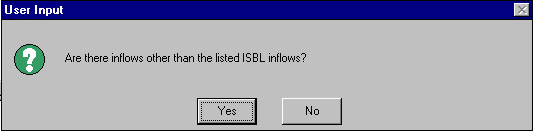
You will then be asked if there are inflows other than the ISBL. Select Yes. This will open the table OINFLOW.DBF. It is initially an empty table.
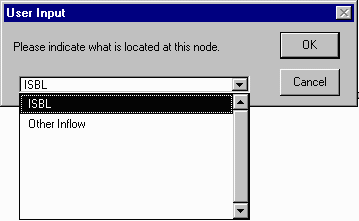
Click on node 1. ArcView will ask you to indicate the type of flow located at node 1. Select ISBL
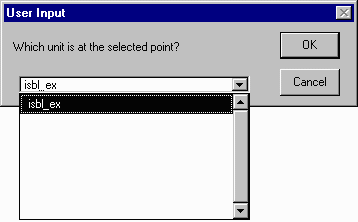
You are now asked to indicate which ISBL is located at node 1. We only have one ISBL unit (ISBL_EX) associated with this OSBL. Click OK.
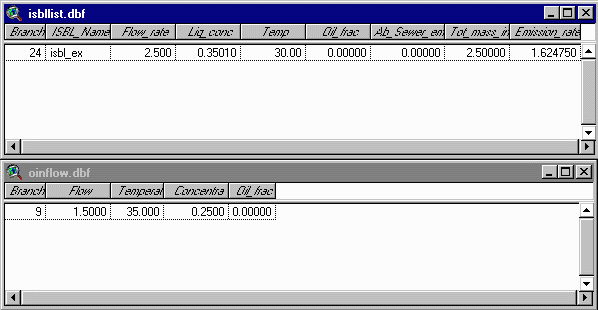
Now, if you look at the table ISBLLIST.GIF, the data output from running naUTilus on the ISBL_EX unit is listed in the table. The ISBL unit has been connected to the OSBL.
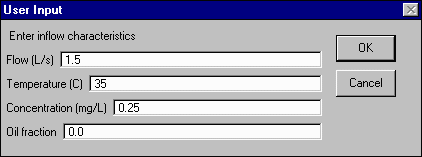
Click on node 10. Again, you will be prompted to indicate the type of flow at the node. This time, select Other Inflow. Enter the following flow characteristics: flow = 1.5 L/s, temperature = 35 oC, concentration = 0.25 mg/L, and oil fraction = 0.0. Then hit OK. This data will now appear in the table OINFLOW.DBF.
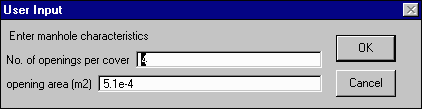
You are now ready to run the OSBL module of naUTilus. To do this, click on the  button at the upper right hand portion of the screen. ArcView will prompt you to enter data on the number of pickholes per manhole cover and the area of the opening. Accept the default values and hit OK.
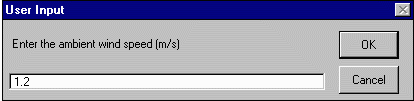
Next you will enter the ambient wind speed. Use a value of 1.2 meters per second.
When prompted, enter a ambient temperature of 20 oC and a relative humidity of 40%.
ArcView will then ask you to select the method of calculating the Henry's law constant. As for the ISBL unit, select method 1 (Hc = exp (A-B/T)). Enter the same values you input for the ISBL unit.
You will then enter the values for Dl and Dg. Again, use the same values you did for the ISBL unit.
Again, you will use the same conditions for your OSBL as your ISBL when asked about the presence of oil in your system and the method of calculating liquid-phase mass transfer coefficients. Select No Oil Present and hit OK. Then select Parkhurst/Pomeroy and hit OK.
You will then select the method of calculating emissions at drop structures (Nakasone or Water8). Select Nakasone and hit OK.
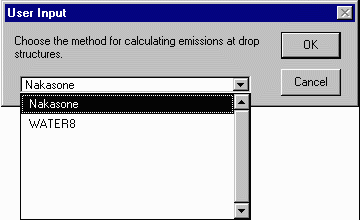
ArcView will now run the OSBL module of naUTilus. Again, this is a delayed run, so about 5 seconds will pass before the program is run. As for the ISBL unit, a DOS window will appear when naUTilus is being run. After naUTilus has been executed, ArcView will display the emissions from the OSBL unit on the OSBL view window.

The OSBL module of naUTilus puts out three output files. Two are comma-delimited text files, one for nodes (ONDOUT.TXT) and one for branches (OBROUT.TXT). These files can be opened in ArcView to view the results. A third text file (OSBL.OUT) describes both nodes and branches and is best viewed in Notepad or word processing software such as Word.